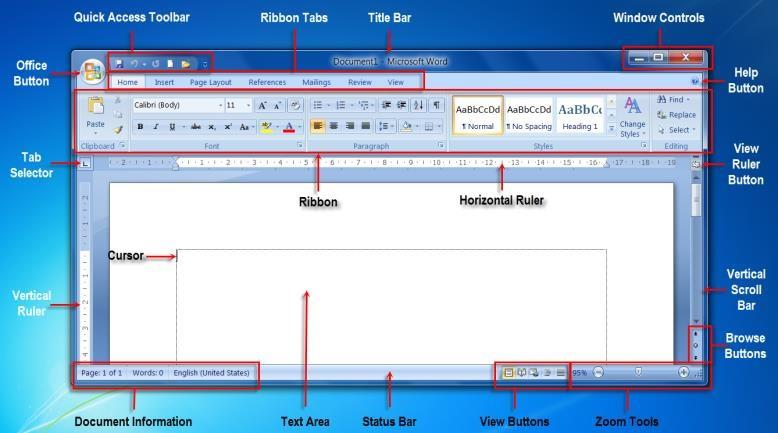
Word Processor Applications: the Case of Microsoft Word
Word processing is the act of using a computer as a tool to type, edit, format, save and print documents, using software called a word processor or word processing program. Word processors have a “word wraparound” feature: as soon as text reaches the end of a line, the word that doesn’t fit moves to the next line, and text automatically re-fits itself when margins change. Some commonly used word processors are Microsoft Word, WordPad, NotePad and WordPerfect.
Characteristic Features of Word Processors
- Typeface: the font allows different styles to be used in a document.
- Cut, Copy & Paste: cut removes text (which can be discarded or pasted elsewhere); copy pastes a copy elsewhere – both also apply to graphics.
- Word-wrap: the computer automatically starts a new line when needed, so Enter is only needed to start new paragraphs.
- Find and Replace: Find searches a document for a word or phrase; Replace substitutes the occurrences found with another word or phrase.
- Line spacing: changes the space between lines – normal text is single-spaced, and can be altered to 1.5, double, or a specific number of points.
- Spell Checker: uses a built-in dictionary to check all text in the document.
- Alignment: positions text on the page – left, center, right or justified.
Spreadsheet Applications: the Case of Microsoft Excel
A spreadsheet is application software that allows a user to work with numbers, perform calculations, and create graphs, consisting of a workbook made up of one or more sheets arranged as a grid of lettered columns (A, B, C…) and numbered rows (1, 2, 3…). The box where a column and row intersect is called a cell, e.g. A1, D41. Spreadsheets are applicable to student records, charts and graphs, accounting, budgeting, and forecasting – one of their great abilities is automatically recalculating figures once a formula is introduced.
Key Vocabulary
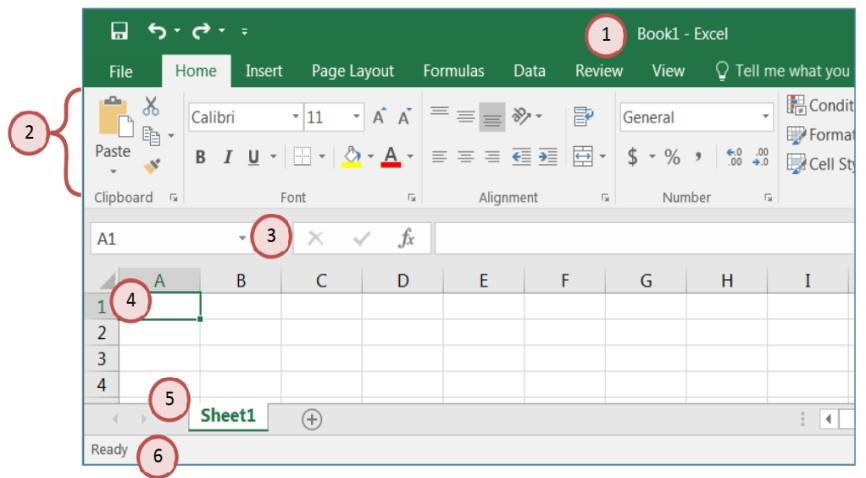
- An Excel file is called a Workbook (default title Book1, which can be renamed).
- The Ribbon is broken into tabs (Home, Insert, Page Layout, Formulas, Data, Review, View), which are in turn broken into groups (Clipboard, Font, Alignment).
- The Name box (left) shows the address of the current cell; the formula bar (right) shows its contents.
- Worksheet tabs default to Sheet1 but more can be added; a new worksheet can be inserted via the Cells group on the Home tab, or by clicking the New Sheet button.
Characteristics of a Cell
A cell can contain a Label (text), a Value (a number, right-aligned by default), or a Formula (which instructs the computer to calculate a value to display, always starting with an equals sign).
Cell Referencing
A relative reference (e.g. A1) changes to maintain the relationship between the formula’s cell and the referenced cell when copied elsewhere. An absolute reference (e.g. $A$1) does not change when copied – $A means the column is fixed, $1 means the row is fixed (obtained with the F4 key). A mixed reference fixes only the row or the column, e.g. A$1 or $A1. References can also point to cells in other worksheets, e.g. =worksheet1!C4, or in other workbooks, e.g. =[workbook1]worksheet1!N10.
Functions
Spreadsheets include built-in formulas called functions for common operations, e.g. =SUM(D2:D15). Other functions include SQRT(), MIN(), MAX(), ROUND(), TODAY(), RANK(), COUNT(), COUNTIF(), SUMIF(), and IF() (with “nested if” allowing more than one IF function inside another, e.g. to assign letter grades). The CONCATENATE() function (or the & operator) joins the contents of cells into one value.
Working with Multiple Sheets and Errors
Rows and columns can be hidden and unhidden via the Format list on the Home tab. Common error types include #DIV/0! (division by zero), #N/A! (a referenced value can’t be found), #NAME? (unrecognized text in a formula), #NULL! (a space used instead of a comma between range references), #NUM! (numeric data in a formula that expects something else), #REF! (an invalid reference), #VALUE! (wrong operand/argument type), and ##### (a number too big for the column).